
C | Submit Source Files or the Project Folder? What to Do When Source Files Are Missing

I’m a software engineer with a background in backend development.
Introduction
If you want to skip to the conclusion, click Conclusion in the table of contents on the left (mobile) or at the top (desktop).
If you take a C programming class at a university or another institution, you will most likely use Visual Studio as your IDE.
When you submit assignments or exam solutions, your instructor will often ask for one of the following:
🗣️ “Submit source files only!”
🗣️ “Submit the project files!”
Failing to submit what your instructor asks for can cost you points, or even result in a zero. This post covers the following questions.
-
How does Visual Studio organize and manage files for C programs?
-
소스 코드,프로젝트,솔루션(source code, project, and solution): how do they differ?
1. How Visual Studio organizes files
1. Creating only a solution
Creating a solution creates a folder such as Solution_name. Inside it, you will find a Solution_name.sln file and a .vs folder.

2. Creating a project
Within Solution_1, I will now create Project1.
(This is separate from the exercise.) If you change the Solution option from Add to solution to Create new solution, Visual Studio automatically creates a solution with the same name as the project, then creates the project inside it.
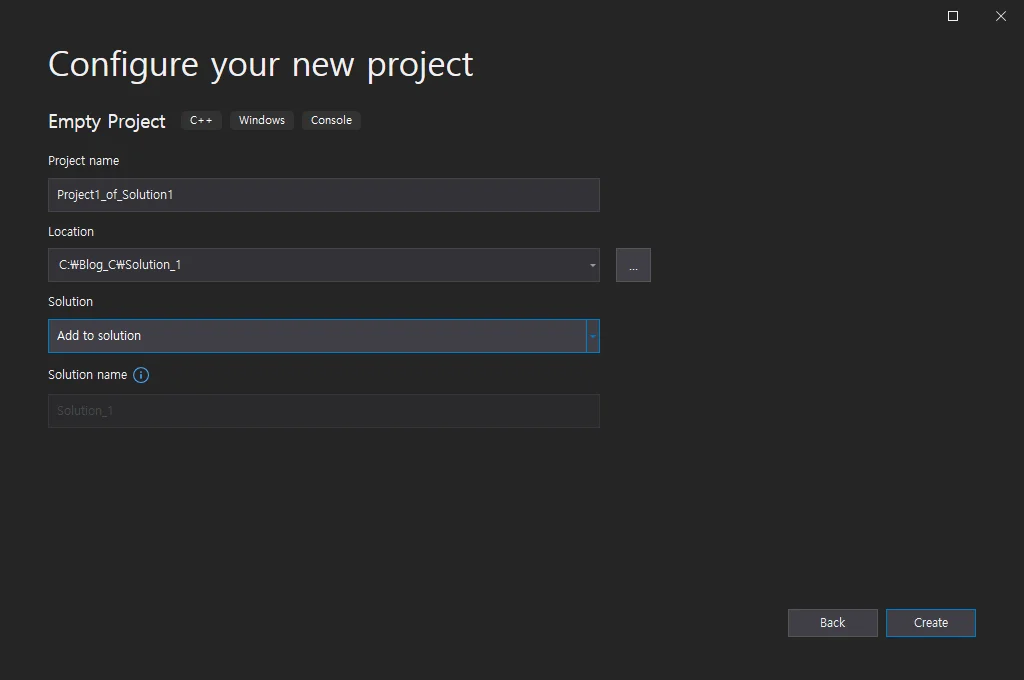
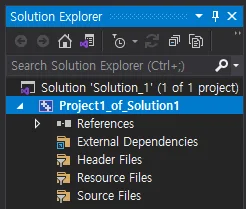
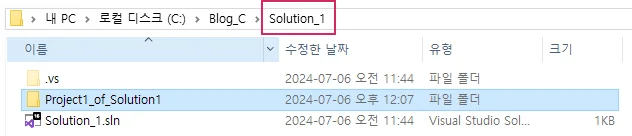
Inside a Project, you can manage Source code 파일 (source code files).
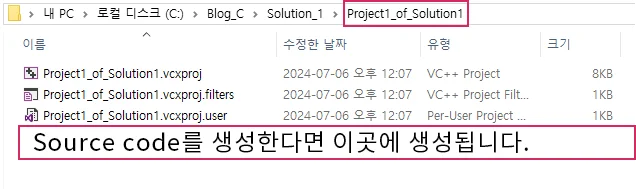
3. Creating multiple source files inside Project1
As shown below, you can create and manage multiple source files in a single project.
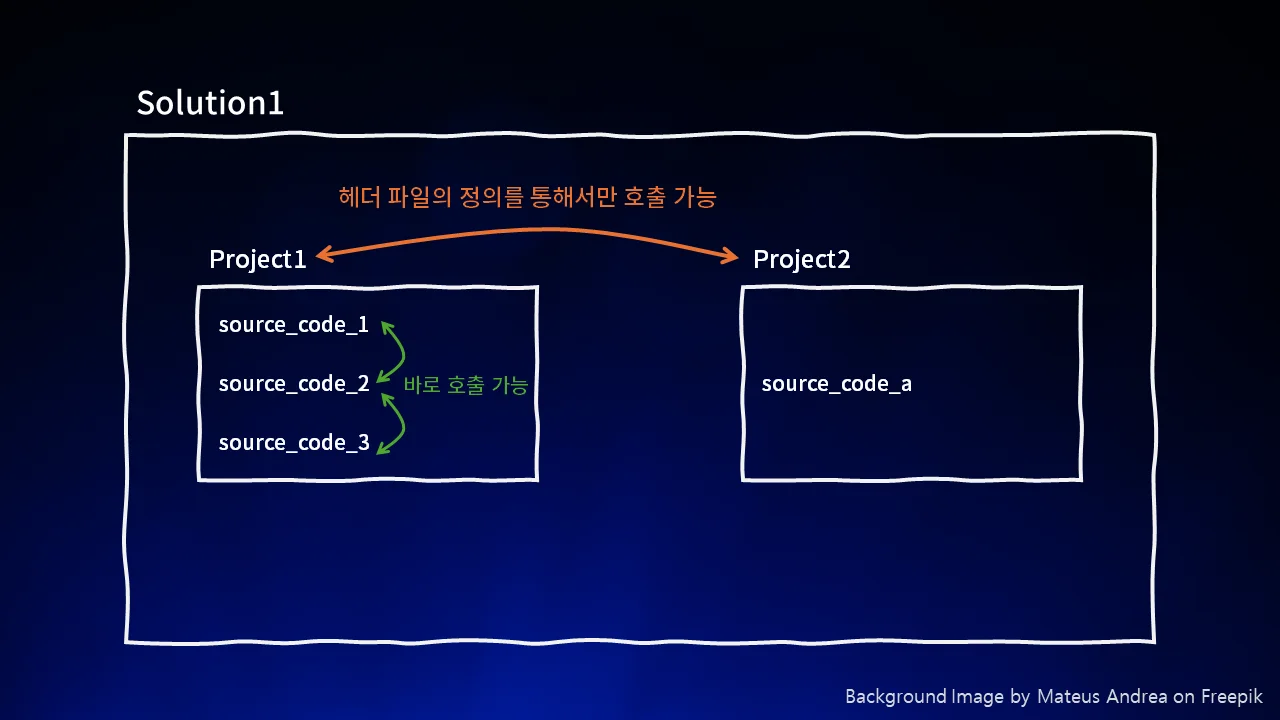
Source files defined in the same project can also call one another’s functions without any additional configuration.
To call a function in another project, you must define a header file. (In fact, even for functions in the same project, for readability and to avoid compiler errors, defining header files is recommended. Here, however, I have described it this way simply to explain what it means for files to be in the same project.)
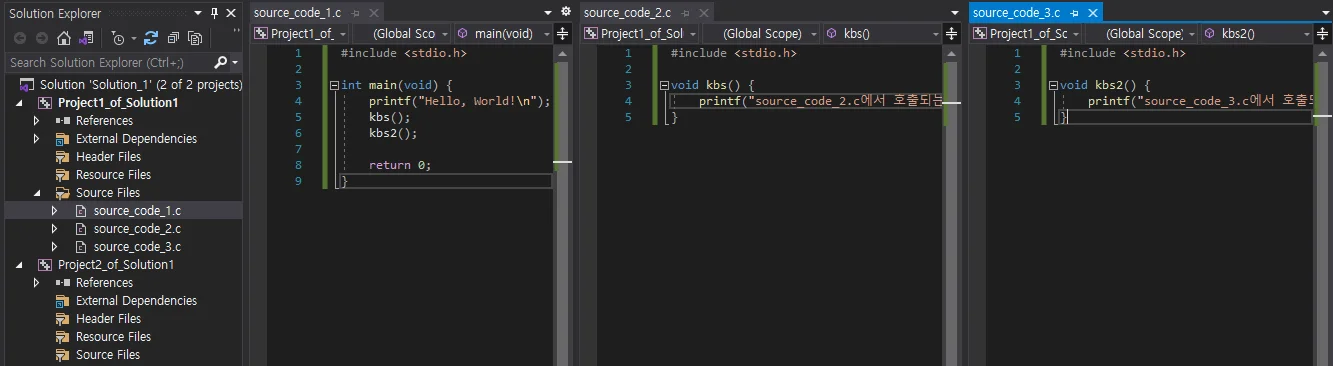
Project1_of_Solution1 contains source_code_1, 2, 3.c. Since these files are in the same project, they can call one another’s functions without any additional configuration.
Trying to call a function in Project2 from Project1
This time, in Project2, I will create source_code_a.c as shown below and try to call it from Project1.
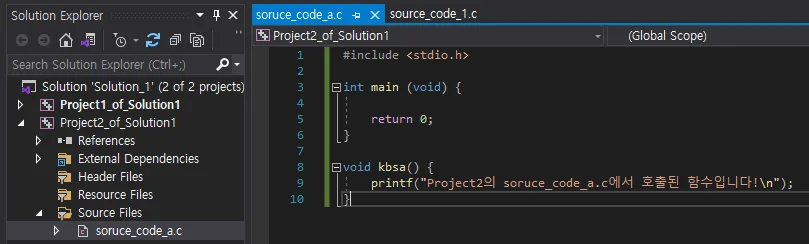
Project1 and the separate project Project2: a file created in the latter, source_code_a.c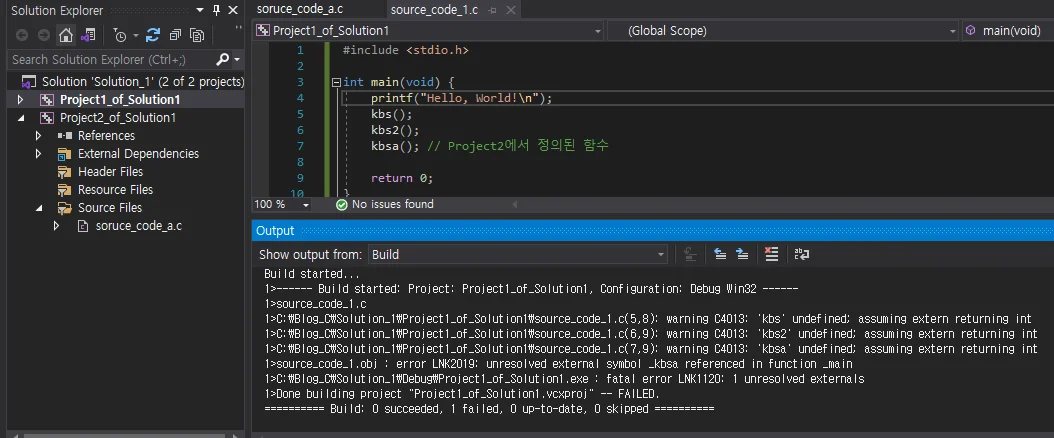
kbsa() cannot be called from Project1 because it is created and managed in a different project, Project2. (Functions in different projects can be called by defining header files, but that is outside the scope of this post.)2. A visual overview
The following diagram summarizes what we have covered.
Conclusion: How do you submit source files or project files?
1. Submitting source files only
To submit only the source files, follow these steps to find the folder that contains them. For this example, I will use the solution Solution_1 솔루션, its project Project1_of_Solution1 프로젝트, and the source file created in that project, source_code_1.c 소스코드.
-
Go to the solution folder containing the project that contains the source code you want to submit.
In my case, that is
C:\Blog_C\Solution_1
-
Go to the project folder containing the source code you want to submit.
C:\Blog_C\Solution_1\Project1_of_Solution1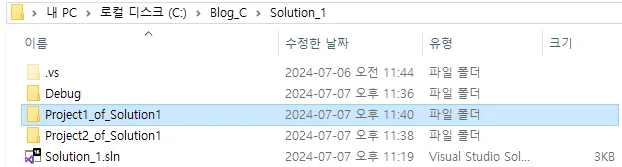
-
Submit the source files as they are, or compress them and submit the archive. That is all.
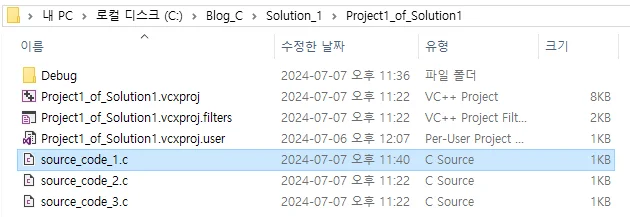
2. Submitting project files
-
Following step 1 above, go only as far as the solution folder, such as
C:\Blog_C\Solution_1. -
Compress the project folder containing the source code you want to submit,
Project_of_Solution1, and submit the archive.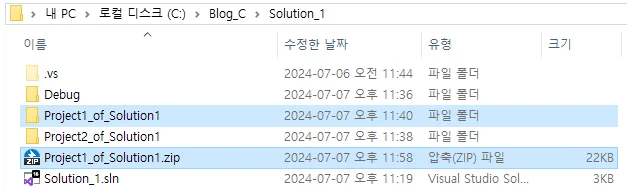
**The source code is missing from my project folder!
Sometimes you create and save source code in a project, only to find that the source files are missing when you open the project folder. Yet compiling, building, and running the program all work.
I ran into this confusing situation myself: as shown below, malloc1.c was in the Project1_of_Solution1 project and ran correctly, but the source file was nowhere to be found in the project folder.
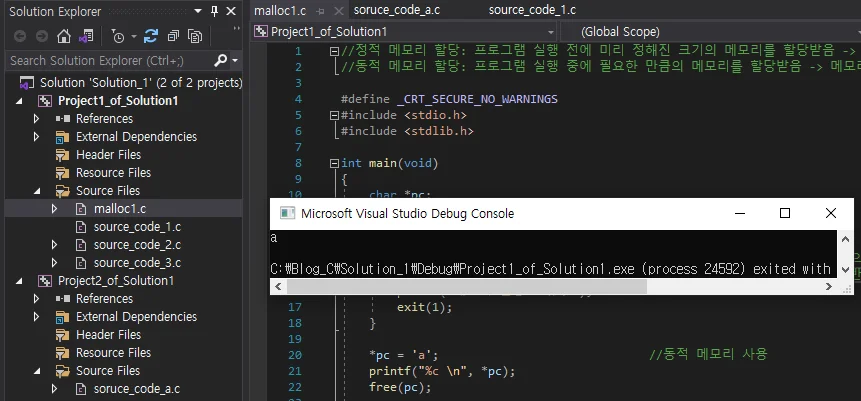
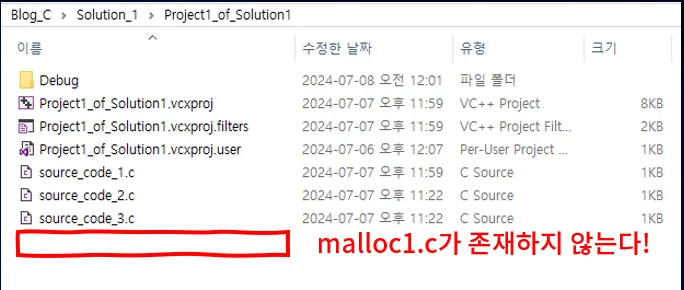
When adding source code, you can choose between 새 항목(New Item) and 기존 항목(Existing Item). If you used 기존 항목 to add the source code, you can encounter the situation above.
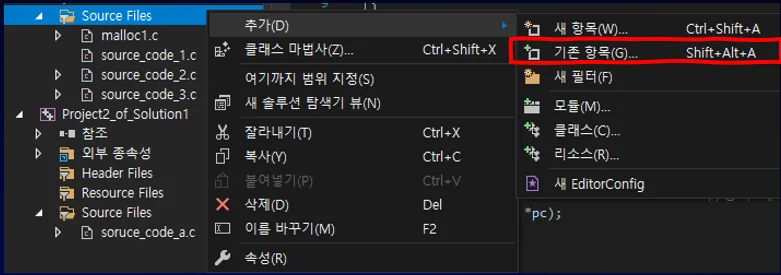
You can resolve it with one of the following options.
-
Need to submit source files only?
기존 항목? Find the source file you added using that option and submit it.
-
Need to submit the project?
- Option 1.
기존 항목: copy the source file you added using that option and paste it into the project folder. - Option 2.
기존 항목: move the source file you added using that option into the project folder. - Option 3.
새 항목: create a blank source file using that option, then copy and paste the code from your existing source file into it.
- Option 1.